This guide explains how to configure your DNS records in cPanel to connect your domain to GoHighLevel funnels or websites.
Before you begin, you need to determine:
-
Are you connecting your main (root) domain?
Example:example.com -
Or are you connecting a subdomain?
Example:funnels.example.comorgo.example.com
In most cases, GoHighLevel is connected using a subdomain, which is simpler and recommended.
If you are unsure how to edit DNS records in cPanel, see:
Managing the DNS Zone Records for Your Domain
Option 1: Connecting a Subdomain
Example:funnels.example.com
This is the most common and cleanest setup.
Required DNS Record
You will normally only need to create:
-
Type: CNAME
-
Name:
funnels(or your chosen subdomain) -
Target: The GoHighLevel target value provided in your GoHighLevel dashboard (e.g.
sites.ludicrous.cloudor similar)
Steps in cPanel
-
Log in to cPanel
-
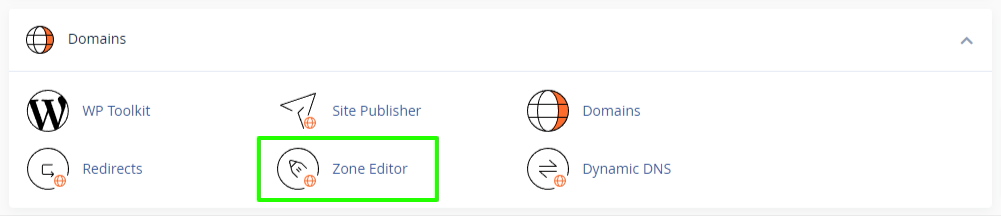
Open Zone Editor
- Click + CNAME Record next to your domain

-
Enter:
-
Name: your subdomain (e.g.
funnels) -
CNAME: the value provided by GoHighLevel (typically
sites.ludicrous.cloud)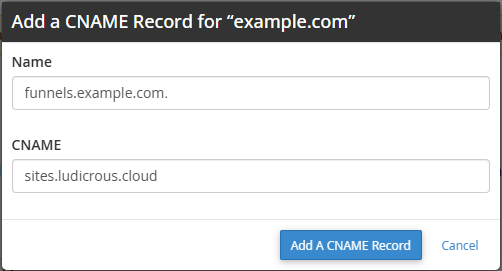
-
-
Click on Add A CNAME Record to save.
That is typically all that is required for subdomain setups.
DNS propagation may take up to a few hours.
Option 2: Connecting the Root Domain
If you want GoHighLevel to load directly on the root domain (e.g. example.com), this is slightly more complex.
Typical Configuration
GoHighLevel will usually provide two DNS records:
A Record (Root Domain)
-
Type: A
-
Name:
example.com(equivalent of@in cPanel) -
Points to: GoHighLevel IP address
CNAME Record (www)
-
Type: CNAME
-
Name:
www -
Points to: GoHighLevel target (typically
sites.ludicrous.cloud)
These records should normally already exist, so you will need to modify the existing records instead of adding new records.
Steps in cPanel
-
Log in to cPanel
-
Open Zone Editor
- Click Manage next to your domain

- Edit the existing DNS records. Below is an example of how the two DNS records should look like:

After editing the records, click on the Save All Records button (or the Save Record button next to each host) to apply the changes.
Alternative: Redirect Root to www
If you prefer not to use an A record for the root domain, you can:
-
Configure only:
-
A CNAME record for www → GoHighLevel
-
-
Set up a redirect from:
-
example.com→www.example.com
-
This keeps DNS simpler and avoids root A record conflicts.
To configure the redirect, see:
How to Manage URL Redirects in cPanel
Important Notes
-
Only create the records specified by GoHighLevel.
-
Remove or modify any existing or conflicting A or CNAME records for the same host name.
-
DNS changes can take up to 24 hours globally, though they usually propagate much faster.
-
If you are using Cloudflare or external DNS, the records must be added there instead of cPanel.
Troubleshooting
If the domain does not connect:
-
Confirm the DNS records exactly match GoHighLevel’s instructions
-
Ensure no duplicate A/CNAME records exist
-
Allow sufficient time for DNS propagation
-
Confirm the domain is verified inside GoHighLevel
If you are unsure whether your domain is using Maxer nameservers or third-party DNS, please use a tool such as LeafDNS or contact support and we will confirm this for you.
If you provide:
-
The domain name
-
Whether you are connecting root or subdomain
-
The exact DNS values from GoHighLevel
We can verify the configuration for you.
Updated by SP on 11/02/2026